Ever wondered how Steam tracks your gaming hours? Do you want to know how your Steam play count is calculated, or perhaps how to manage its visibility to friends and the public? This comprehensive guide dives deep into the fascinating world of Steam play count metrics. We explore everything from its basic function to advanced privacy settings and troubleshooting common discrepancies. Discover actionable tips to ensure your playtime is accurately recorded and displayed. Understand the nuances of Steam's playtime tracking system, whether you are a casual player or a dedicated achievement hunter. This article provides all the essential information you need to master your Steam play count. You will gain valuable insights into this often-overlooked but crucial aspect of your gaming profile. Let's unlock the secrets behind those цифры together.
Welcome to the ultimate resource for all your Steam play count questions! This living FAQ for 2026 is constantly updated with the latest information, tips, tricks, and guides regarding how Steam tracks your valuable gaming hours. Whether you are battling a bug, refining your understanding of playtime, or just curious about the endgame of your gaming statistics, you have come to the right place. We cover everything from basic inquiries to advanced troubleshooting and privacy concerns. Dive in to clarify any doubts and master your Steam profile like never before. Let's make sure every minute counts, and every question gets an honest, detailed answer, straight from the source of current Steam knowledge.
Understanding Playtime Basics
How is my Steam play count calculated?
Your Steam play count is calculated by how long a game's executable is running while associated with your Steam account. This includes active gameplay, idling in menus, or even leaving a game minimized in the background. The system continuously logs this duration from launch to exit. It provides a comprehensive record of your game engagement. This method ensures every moment spent within a game contributes to your overall statistics.
Does Steam count playtime in offline mode?
Steam does record playtime locally when you are in offline mode. However, these hours will only synchronize and update on your public or friends-only profile once you reconnect to the Steam network. Make sure to go online periodically. This action ensures your total play count reflects all your gaming sessions accurately. Without synchronization, your online profile might seem outdated.
Can friends see my Steam play count if my profile is private?
No, if your Steam profile is set to 'Private', neither your friends nor anyone else can see your play count or game library details. This setting offers the highest level of privacy. It ensures your gaming activity remains entirely personal. You have complete control over this sensitive information. Only you can view your own comprehensive statistics.
Myth vs Reality: Does pausing a game stop the play count?
Reality: No, pausing a game does not stop the play count on Steam. As long as the game's process is still running on your computer, Steam continues to log the time. To truly stop the play count, you must fully exit the game. This means even if the game is paused in the background, hours will still accumulate. Only closing the game ceases the tracking process.
Privacy and Visibility Settings
How do I hide my Steam play count?
To hide your Steam play count, go to your Steam profile, click 'Edit Profile', then select 'Privacy Settings'. Under 'Game details', choose 'Private' for who can see your game library and playtime. This will make your play count invisible to everyone. This setting ensures your gaming hours remain for your eyes only. It offers complete discretion over your statistics.
Can I show my game library but hide play counts?
Yes, you can achieve this by setting your 'Game details' privacy to 'Friends Only' or 'Public' but then individually managing which games are visible. For play counts, specifically, you'd typically need to hide the entire 'Game details' section, or select 'Friends Only' if you want friends to see games but not hours. A more granular control for individual games isn't natively supported for hours.
Troubleshooting and Accuracy
Why is my Steam play count inaccurate or stuck?
Your Steam play count might be inaccurate or stuck due to several reasons, including improper game shutdown, temporary server delays, or issues with game file integrity. Sometimes, a simple Steam client restart or waiting a few hours for server synchronization resolves the problem. Verify game files through Steam to fix corrupted data. Persistent issues may require contacting Steam Support. Always ensure your game closes properly.
Myth vs Reality: Is play count updated instantly after quitting a game?
Myth: While often quick, play count updates are not always instant. Reality: There can be a slight delay of a few minutes, or sometimes even hours, before your Steam play count fully updates on your profile. This is especially true for games played in offline mode. Server synchronization takes time to process data. Always allow some time for the system to catch up. Patience is key for accurate public display.
Advanced Play Count Management
Are there third-party tools to track Steam playtime more precisely?
Yes, several third-party tools and websites offer more precise or alternative ways to track your Steam playtime. Services like Steam Ladder or Steam Hunters can pull data from your public profile and offer enhanced statistics. These tools often provide deeper insights or comparisons beyond Steam's native features. Always use reputable services for data security. They can enrich your understanding of your gaming habits.
Still have questions?
If you've still got burning questions about your Steam play count, remember the Steam Community forums are a fantastic resource. You can also check out our related guides on 'Optimizing Steam Download Speeds' or 'Mastering Steam Profile Customization' for more platform insights!
Ever found yourself staring at your Steam profile, wondering just how many hours you have poured into your favorite games? Does that number truly reflect your dedication, or are there hidden factors at play? It is a question many gamers ponder, and understanding your Steam play count goes beyond mere bragging rights. This vital metric offers a snapshot of your gaming journey and your commitment to various titles. Let's embark on a comprehensive journey to demystify the Steam play count and empower you with knowledge.
We will dive deep into what the Steam play count is, how it functions, and why it sometimes feels a bit mysterious. You will gain practical tips for managing your playtime visibility and even troubleshooting those peculiar discrepancies. By the end of this guide, you will be an expert on your Steam gaming hours. You will truly understand every single digit shown on your profile and your friends' profiles. Prepare to optimize your Steam experience like a true gaming pro.
Understanding Your Steam Play Count
The Steam play count is more than just a simple number; it represents the total accumulated time you have spent playing a game. This metric is prominently displayed on your Steam profile and within your game library. It offers a quick reference for your engagement with various titles. For many, it is a badge of honor, showcasing countless hours spent exploring vast virtual worlds. However, it also serves as an analytical tool for developers and players alike. It provides insights into game longevity and player retention metrics. The accuracy of this count is crucial for both personal reflection and community comparison. Knowing how it works helps you fully appreciate your gaming dedication.
How Steam Tracks Your Gaming Hours
Steam tracks your play count by monitoring how long a game's executable process runs while linked to your account. This tracking starts the moment you launch a game through Steam. It continues until you fully exit the game or the process terminates. This method applies whether you are actively playing or simply idling in the main menu. It is an automatic process designed to be seamless and largely invisible to the user. The system records playtime in minutes, which then converts into hours for display. This precise tracking ensures that every moment spent within a game contributes to your overall statistics. It aims for a comprehensive record of your game engagement.
Why Your Play Count Matters to Gamers
For gamers, the play count holds significant personal value and utility. It helps you recall memorable experiences and understand your own gaming habits. It can also influence purchasing decisions, as high play counts often indicate a game's enduring appeal. Many players use it to track personal achievements or to compare their dedication with friends. Furthermore, it aids in reviewing games, giving context to your opinions based on extensive playtime. Your play count is a testament to your journey and the stories you have created. It truly encapsulates your passion for gaming. It forms a core part of your digital gaming identity.
Maximizing Your Steam Play Count Control
Controlling your Steam play count visibility is a common desire for many users. Steam provides robust privacy settings to help you manage who sees your gaming hours. You can decide to share your play count with everyone, only your friends, or keep it entirely private. These options offer flexibility and cater to different user preferences. Adjusting these settings is straightforward and gives you peace of mind. It ensures your gaming habits are shared only with your desired audience. Taking control of your data is an important step. It lets you customize your Steam experience effectively.
Adjusting Your Steam Playtime Privacy Settings
To change who can see your Steam play count, navigate to your Steam profile settings. First, click on your profile name in the top right corner of the Steam client. Then, select 'View my profile' from the dropdown menu. On your profile page, click 'Edit Profile'. From there, go to the 'Privacy Settings' tab on the left-hand side. You will find options under 'Game details' to set who can view your game library and playtime. Choose 'Public', 'Friends Only', or 'Private' according to your preference. Remember to save your changes after making selections. This simple process gives you complete command over your data. It ensures your gaming activity aligns with your personal privacy comfort level.
Understanding Public Versus Private Playtime
Setting your play count to 'Public' means anyone browsing your Steam profile can see your accumulated hours for each game. This option is great for showcasing your achievements and sharing your gaming journey with the wider community. Conversely, selecting 'Friends Only' restricts this visibility to users on your Steam friends list. This is perfect for a more intimate sharing experience among trusted contacts. Opting for 'Private' hides your play count entirely from everyone, including yourself, unless you manually check your own game details. It is a completely personal choice depending on how open you wish to be. Each setting offers a distinct level of exposure. It allows you to tailor your profile information precisely. Your preferred privacy level dictates this important aspect of your presence.
Common Pitfalls and Advanced Insights into Steam Play Count
While the Steam play count generally works flawlessly, some users occasionally encounter discrepancies or unexpected behaviors. It is not uncommon for a game's reported playtime to seem inaccurate or for hours to mysteriously vanish. Understanding these potential pitfalls can help you troubleshoot and better manage your expectations. We will explore why these issues might arise and how to approach them effectively. Knowing the nuances of the system helps avoid frustration. It ensures your experience with Steam play count is as smooth as possible. These insights will empower you to tackle any anomalies.
Troubleshooting Discrepancies in Your Recorded Hours
If your Steam play count seems off, there are a few common reasons and fixes. Firstly, ensure the game fully launched and closed through Steam. Force-closing a game or a system crash might prevent accurate logging of the final minutes or hours. Sometimes, Steam servers may experience temporary delays in updating playtime statistics. Waiting a few hours or even a day often resolves these minor lag issues. For persistent problems, try verifying the integrity of game files. This can resolve underlying issues preventing correct tracking. Contacting Steam Support is always an option if the problem persists. They can offer more specific assistance for complex cases. Patience and systematic checks often reveal the cause.
Does Idling Count Towards Your Steam Play Count?
Yes, idling absolutely counts towards your Steam play count. As long as the game's executable is running and linked to your Steam account, the system records playtime. This means if you leave a game open in the background while doing other tasks, those hours will accumulate. This feature can inflate your recorded playtime if you frequently leave games running unattended. It is a key factor to remember if your play count seems unusually high. Be mindful of game processes if accurate active playtime is your primary concern. Always fully exit games to stop the timer. This ensures your statistics reflect actual engagement, rather than just background activity. Many players appreciate this comprehensive tracking.
The Impact of Offline Mode on Playtime Tracking
Playing games in Steam's offline mode generally does not update your play count in real-time. When you launch games while offline, Steam records the playtime locally on your computer. However, these hours typically synchronize with your online profile only when you reconnect to the Steam network. If you spend significant time gaming offline, expect a delay in your total hours updating on your public or friends-only profile. Ensure you periodically connect to Steam online to push these locally stored playtimes to your account. This ensures your global play count remains accurate and up-to-date. Without synchronization, your online profile might not reflect your full dedication. It is an important consideration for many users.
What Others Are Asking About Steam Play Count?
The Steam play count is a frequent topic of discussion among gamers. Many people have questions about its functionality, accuracy, and privacy implications. We have gathered some of the most common questions from communities and search engines. Let's tackle these inquiries head-on with clear and concise answers. Our goal is to provide you with definitive information. Understanding these common points helps clarify the entire system. It helps to address any lingering doubts you might have. These answers should empower your Steam journey.
How do I see my own Steam play count?
You can easily view your own Steam play count by navigating to your Steam profile page. Once there, your total hours for each game in your library are displayed prominently. You will find these statistics listed directly under each game's entry. This provides a quick overview of your gaming history. It's a straightforward process for checking your personal investment in various titles. Your play count is readily available for your review.
Can I reset my Steam play count for a game?
No, Steam does not offer an official way to reset your play count for any game. The accumulated hours are permanently linked to your account for that specific title. While some users might desire a fresh start, the system is designed to maintain a historical record. This ensures data integrity. There are no legitimate in-client methods to clear these statistics. The number will simply keep growing with more playtime.
How do I hide my Steam play count from friends?
To hide your Steam play count from friends, access your profile's privacy settings. Go to 'Edit Profile', then 'Privacy Settings', and under 'Game details', select 'Friends Only' or 'Private'. Choosing 'Friends Only' will show your games but hide play counts, while 'Private' hides everything. This allows you to control who sees your gaming habits. It is a quick and effective way to manage your visibility. Your choices here directly impact your social presence.
Why is my Steam play count not updating?
If your Steam play count is not updating, several factors could be at play. The game might not be properly closing, leading to unsaved playtime. Temporary server delays can also cause a lag in updates, so waiting a few hours sometimes helps. Ensure you are connected to the Steam network for synchronization. Persistent issues might require verifying game files or contacting Steam Support for a deeper investigation. Connectivity is often the key.
Does Steam count playtime if I launch a game outside of Steam?
No, Steam typically does not count playtime if you launch a game executable directly, bypassing the Steam client. For playtime to register, the game must be launched through Steam itself. This ensures the client can properly monitor the process and attribute the hours to your account. Always use the 'Play' button in your Steam library. This is crucial for accurate tracking. It guarantees your dedication is recognized.
Is there a way to see play counts for games I no longer own on Steam?
Generally, no. Once a game is removed from your library, its specific play count usually becomes inaccessible to you directly. Steam's focus is on currently owned and played titles. While the overall playtime contributes to hidden global stats, individual game hours are tied to library ownership. You might recall them, but the official record is typically gone. This maintains a streamlined active library experience. Your past gaming adventures might remain in memory only.
The Future of Steam Play Count and Gaming Metrics
As gaming evolves, so do the metrics we use to understand our habits. The Steam play count remains a foundational metric, but new forms of engagement tracking are constantly emerging. We are seeing more in-depth statistics within games themselves. Think about battle pass progression and achievement tracking. The future might bring even more granular data, perhaps differentiating active gameplay from menu idling. This could offer a clearer picture of true engagement. The continuous refinement of these metrics will undoubtedly enhance our gaming experience. It will provide even richer insights into our digital lives. Steam continues to innovate its platform features.
Beyond Raw Hours: Deeper Insights into Gaming Habits
The raw number of hours is just one piece of the puzzle; deeper insights often come from analyzing play count in context. Are you spending those hours in competitive ranked matches or exploring vast open worlds? The quality of your playtime can be more revealing than the quantity. Developers are increasingly using playtime data to understand player behavior. This helps them refine game design and introduce new content. For players, understanding these deeper trends can inform future game purchases and genre preferences. It helps tailor your gaming library to your true enjoyment. The simple play count is just the beginning. It opens doors to much more complex analyses.
Tips for an Optimized Play Count Experience
Always launch games through the Steam client to ensure accurate tracking.
Fully exit games when you are finished to prevent unnecessary hour accumulation.
Regularly check and adjust your privacy settings to control who sees your playtime.
If a play count seems incorrect, allow a few hours for Steam servers to synchronize.
Utilize community tools or external trackers if you desire more granular data than Steam provides.
Remember that offline mode play counts will only update once you reconnect to Steam online.
Engage with friends about their play counts; it is a fun way to compare gaming dedication.
Well, wasn't that a journey into the heart of your Steam gaming life? We have uncovered the secrets behind those elusive play counts. You now possess the knowledge to understand, manage, and even troubleshoot your Steam playtime. Whether you are a casual player or a seasoned veteran, knowing how this system works empowers you. It allows you to shape your digital footprint precisely as you wish. So go forth, game on, and let those hours proudly accumulate!
Understand Steam play count calculation methods. Learn to adjust your privacy settings for playtime. Troubleshoot common discrepancies in recorded hours. Discover how to accurately track your gaming sessions. Gain insights into the public and private display options. Optimize your Steam profile visibility for play count.
35


Steam Sales 2026 Calendar Full Dates Best CD Key Deals AllKeyShop Com All Steam Events 2026. Steam Player Count In 2025 How Many People Play On Steam Steam Player Count Top . Steam Sales 2026 Here S The Schedule For The First Half Of The Year 1824cr953 . Steam Sale 2026 Key Dates You Need To Know LevelUpTalk Steam Sale Schedule 2026 08 27 2025 7c35051e 2c22 4093 96f1. NVIDIA Pushes GeForce Now India Launch To Q1 2026 But The Wait Will Be
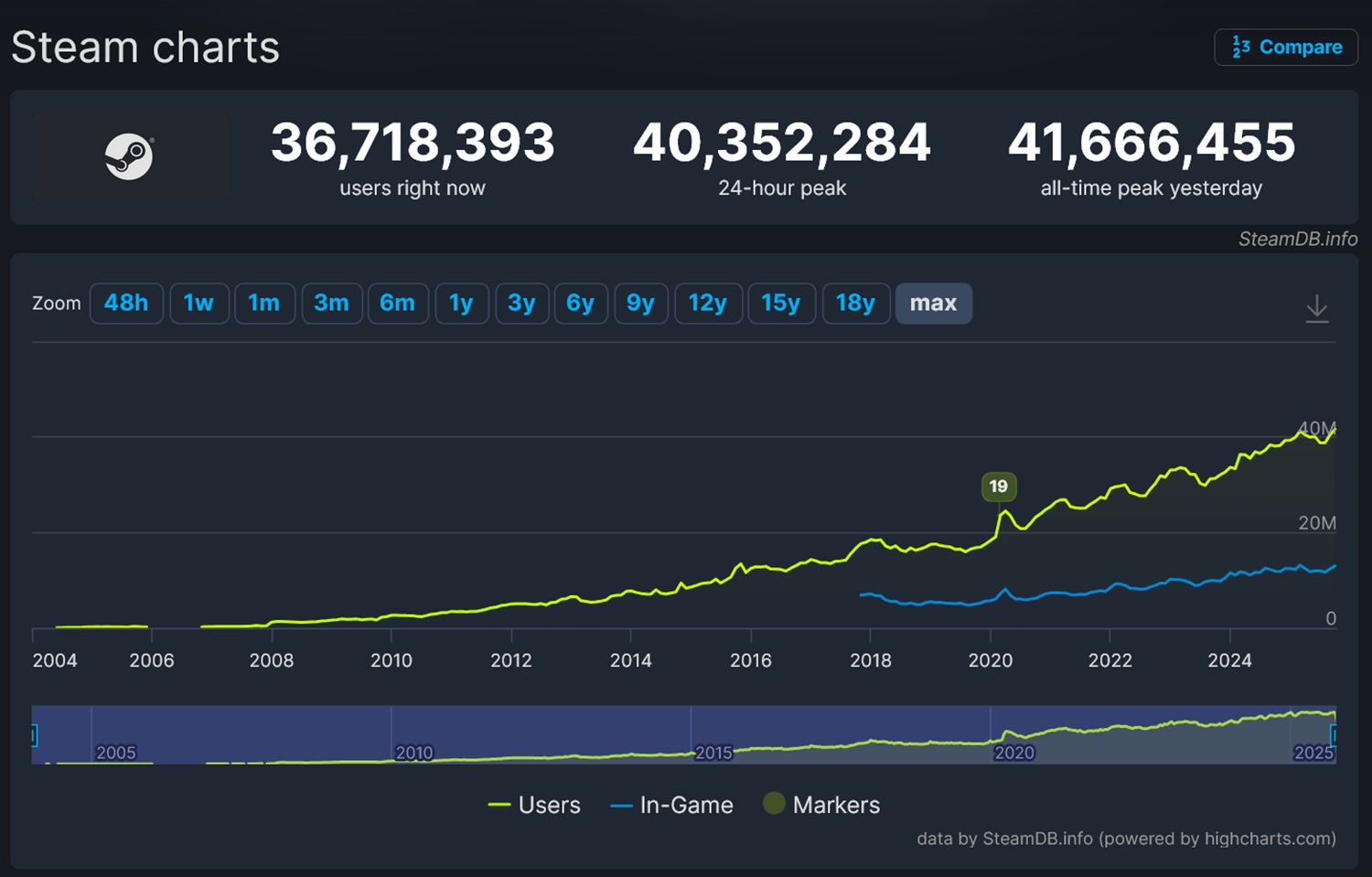


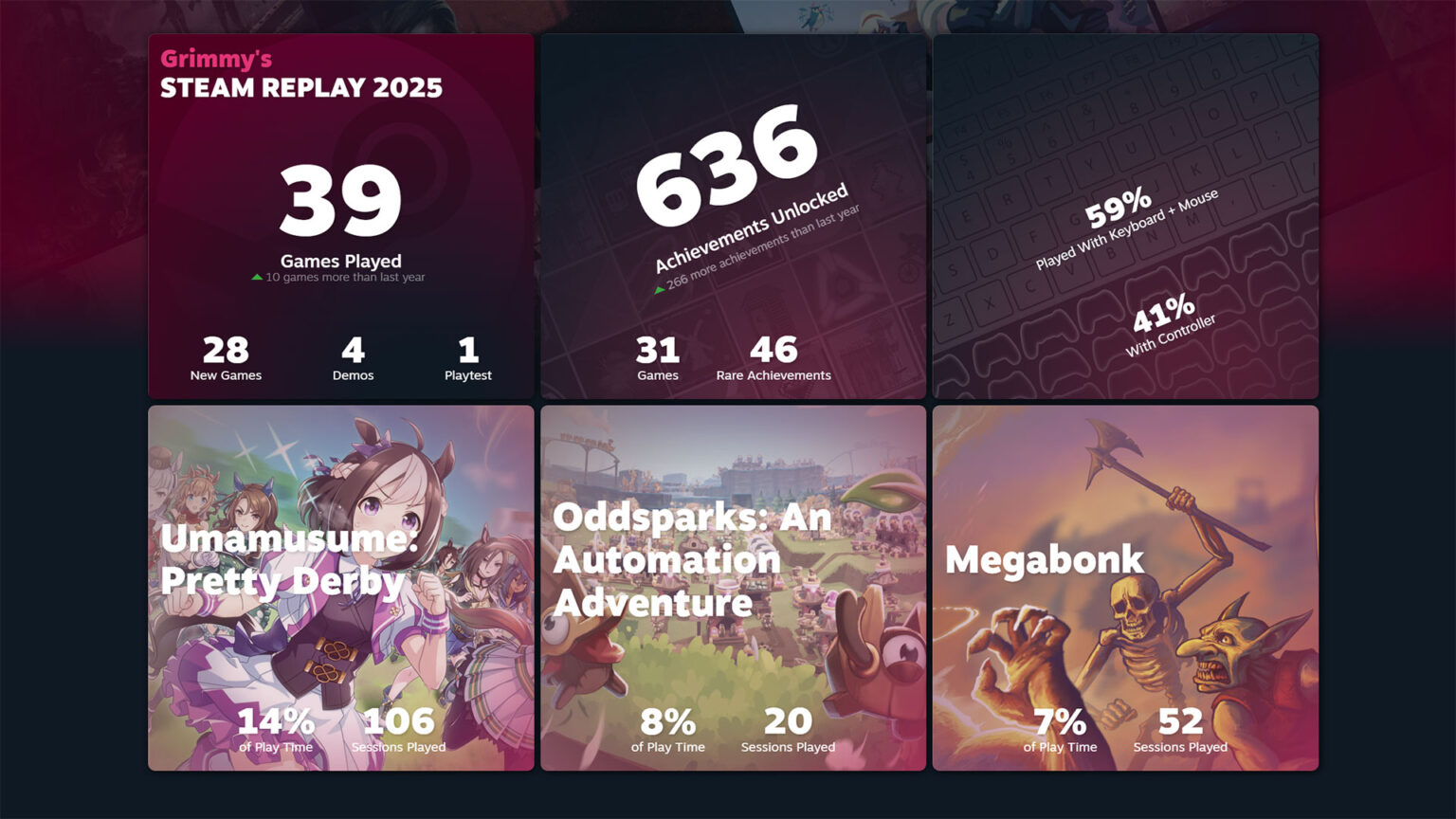
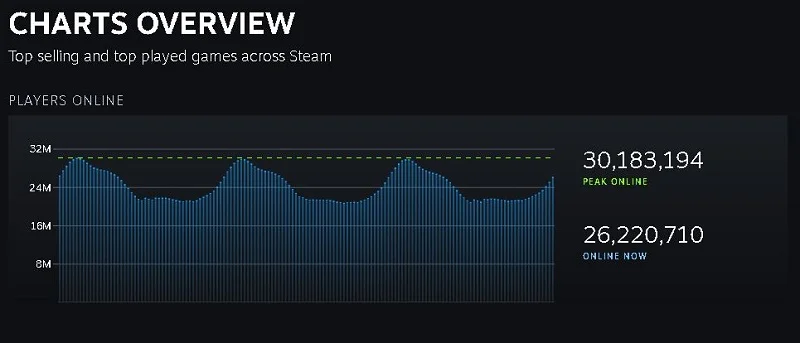
Steam Player Count Record Broken Again As Battlefield 6 Helps Platform . Steam S Peak Player Count Proves The Power Of PC Gaming Insider Gaming Steam Growth 770x460 . Steam Statistics 2025 Users Revenue Market Share Number Of Steam Active Players 1024x536 . Steam Shares Full Events Schedule For 2026 FullCleared Steam Replay 2025 Now Available 1536x864 . Steam Users Revenue 2024 Daily Monthly Active User Stats Steam Active Players 2024.webp




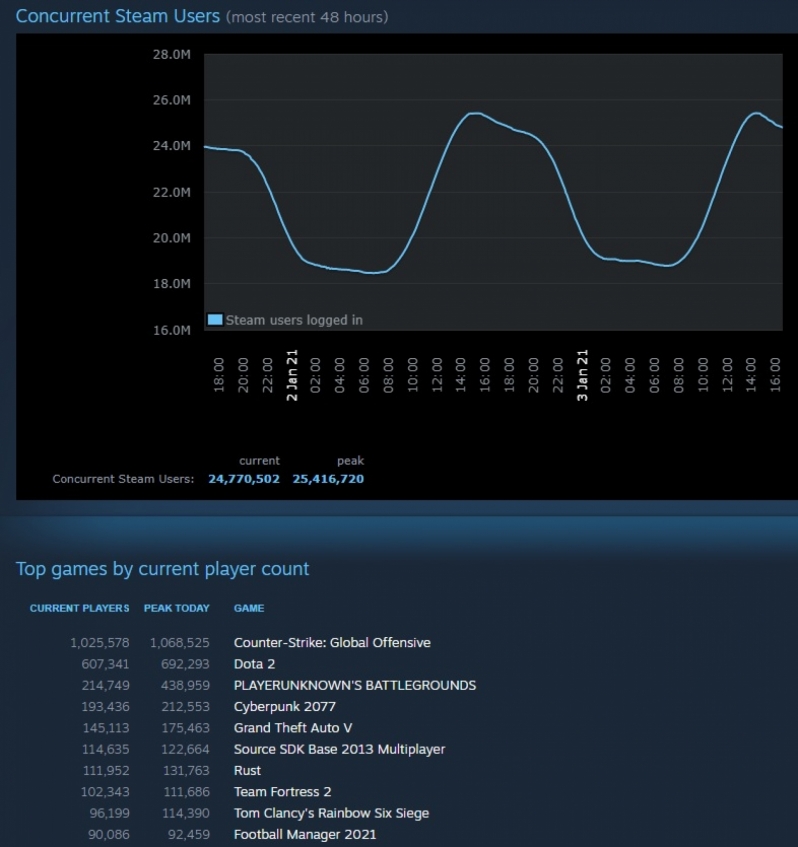
Steam Statistics By Release Sale Usage And Facts 2025 Number Of Video Game Units Sold By Steam From 2020 To 2028 . Thomas Friends Wonders Of Sodor Debuts Amid Low Steam Player Counts 2026 New Project 2026 03 18t140413 414 . Overwatch Player Count 2026 165K Steam Peak Season 1 Esport Aus Untitled Design 62 . Cyberpunk 2077 Gains More Active Players Than Starfield On Steam After Steam Player Count 1024x576 . Steam Starts 2020 With A Bang By Smashing Its Concurrent Player Records Steam Starts 2020 With A Bang By Smashing Its Concurrent Player Records

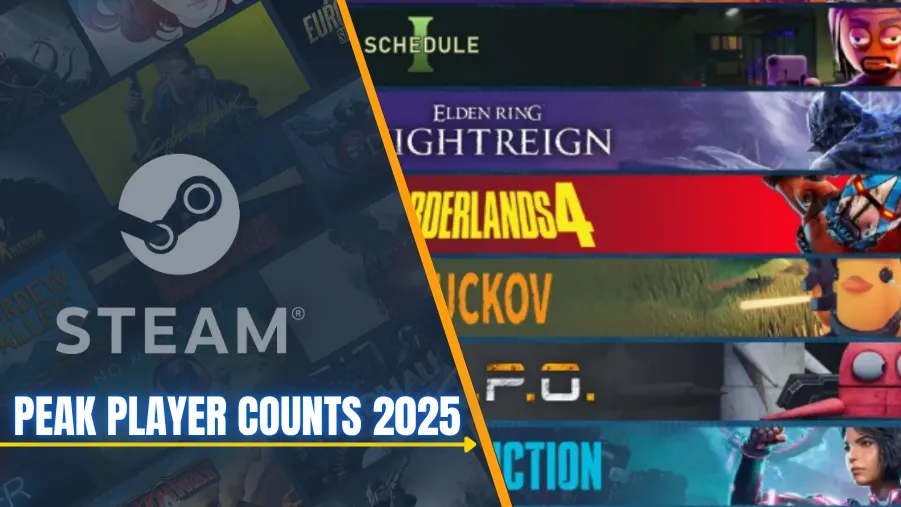
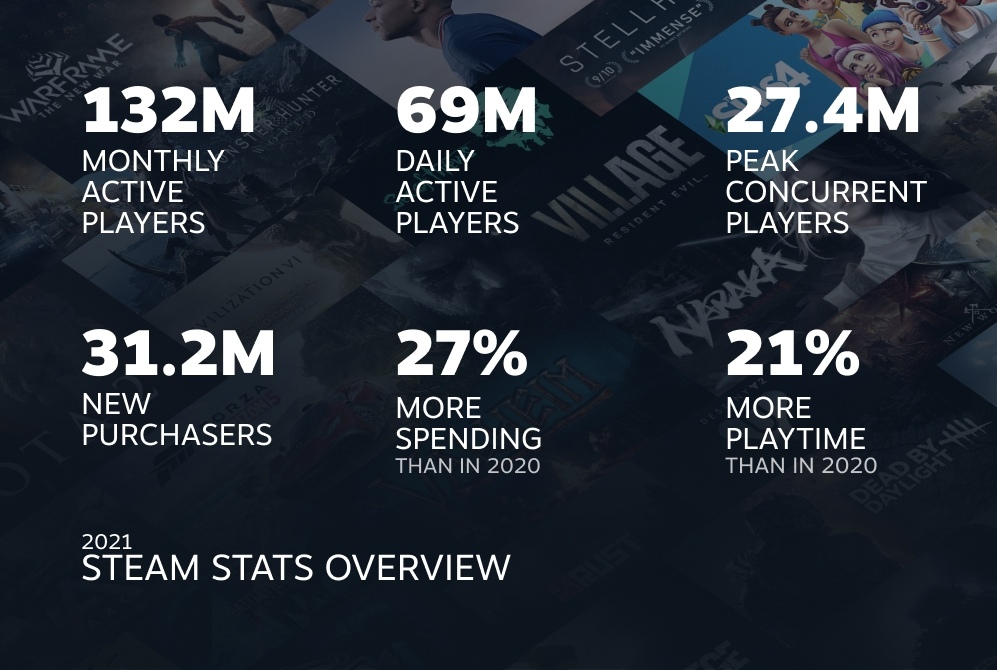
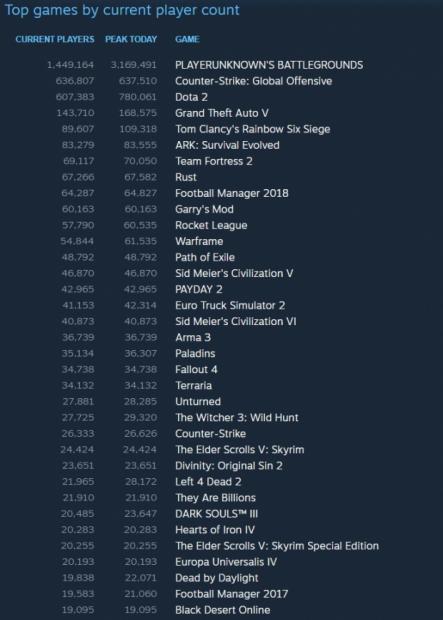

Steam Sets New Record With 34 Million Concurrent Users In 2024 Baldurs Gate 3 Steam Revenue 1024x576 . Highest Steam Peak Player Counts In 2025 Most Played Games Ranked Steam Peak Player Counts 2025. Steam 2021 260 34 Gamebase 4174552 . Steam Hits Milestone 18 Million Concurrent Player Count 60436 02 Steam Hit New Milestone 18 Million Concurrent Player Count . These Games Are Dominating Steam Sales And Player Counts ChatGPT Image Jan 3 2026 09 33 27 AM
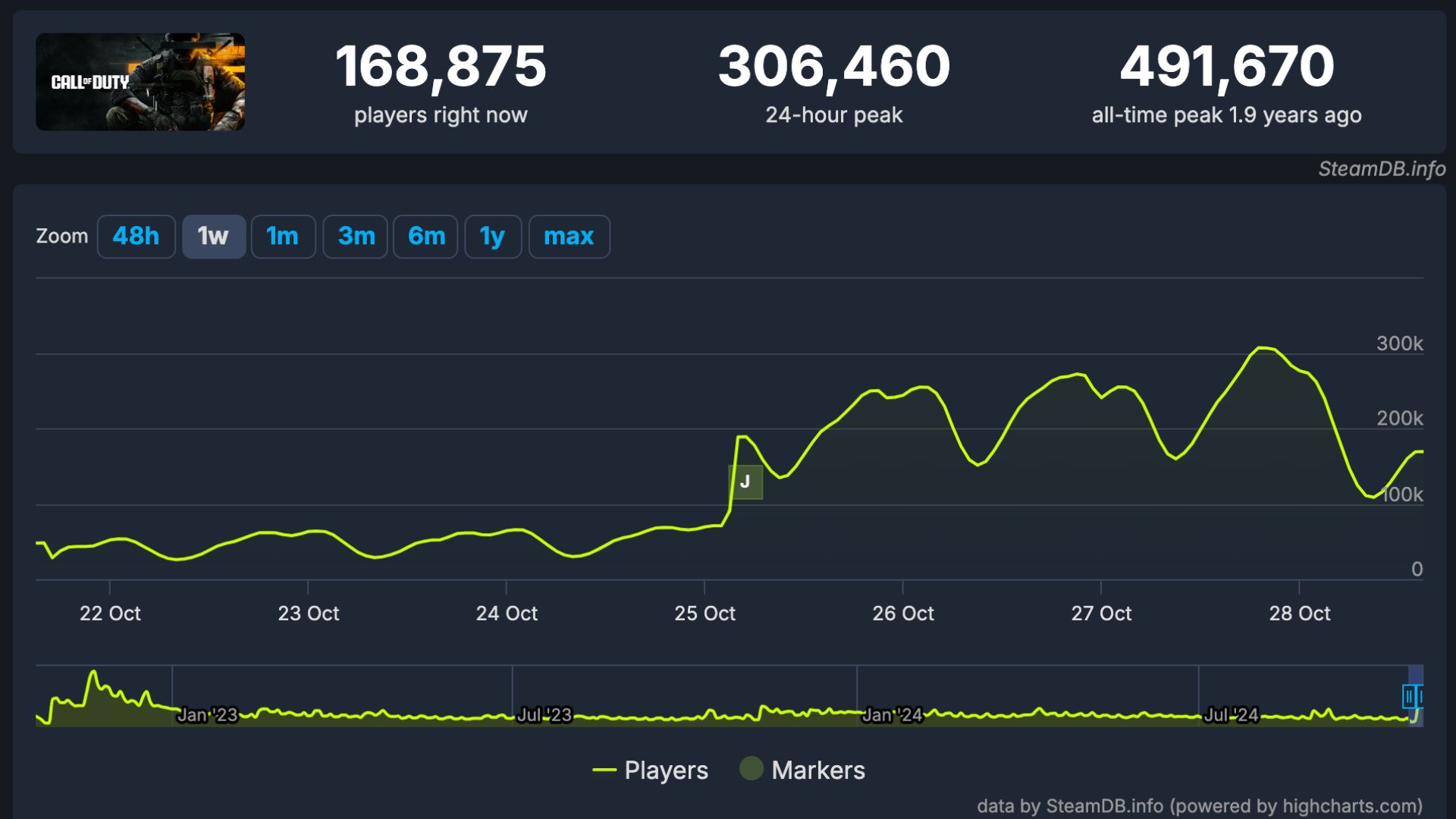

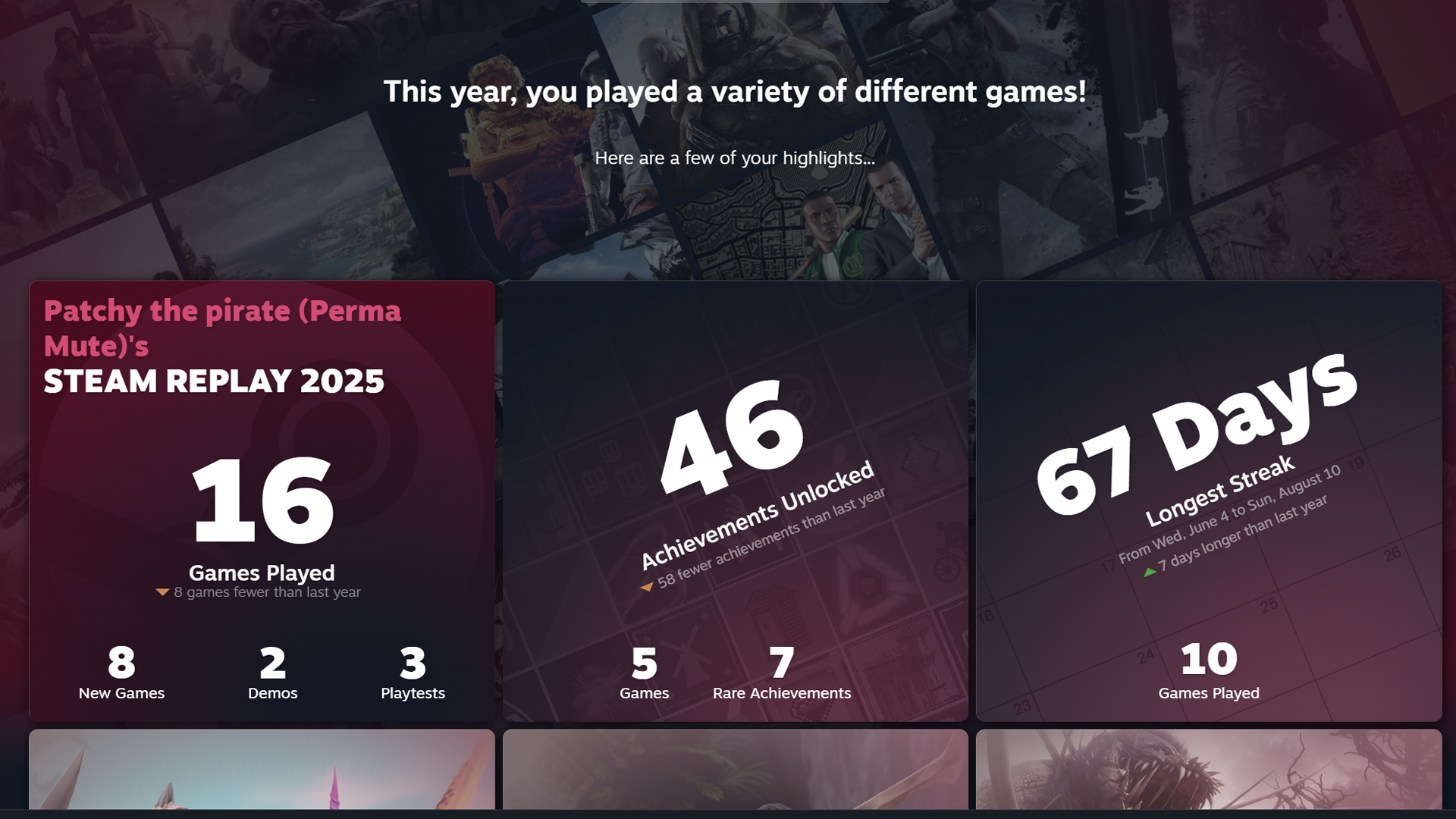
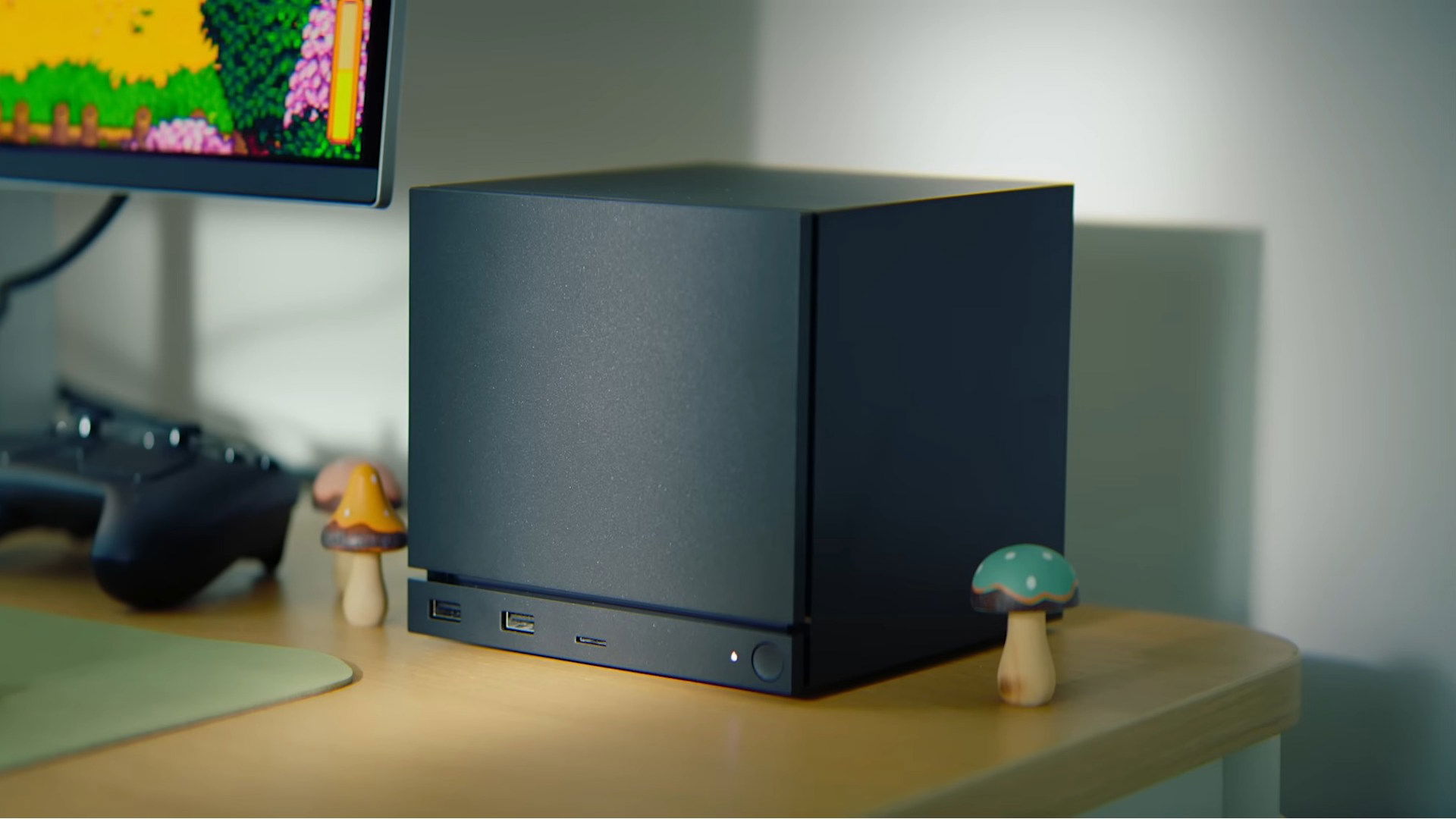
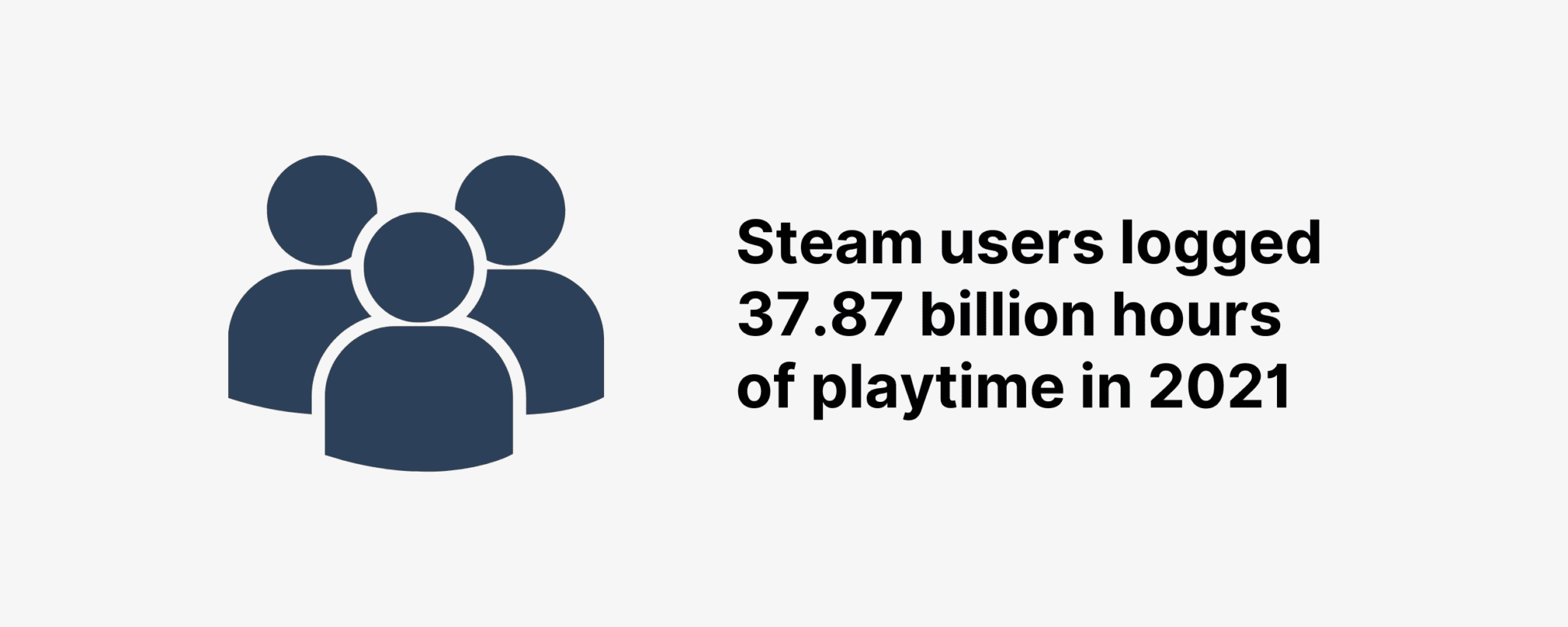
Black Ops 6 Player Count How Many People Are Playing Insider Gaming Call Of Duty Black Ops 6 Steamdb Player Count . Culture Crave Highest Peak Steam Player Counts For 2025 Facebook Media. Steam Replay 2025 Guide How To Get Your PC Gaming Stats Deltia S Gaming Steam Replay Featured Image . Steam Machine 2026 Why Valve Needs Retail Shelves The Outerhaven Steam Machine 2026 Image 01 . Steam Usage And Catalog Stats For 2026 Steam Users Logged Hours 2048x819


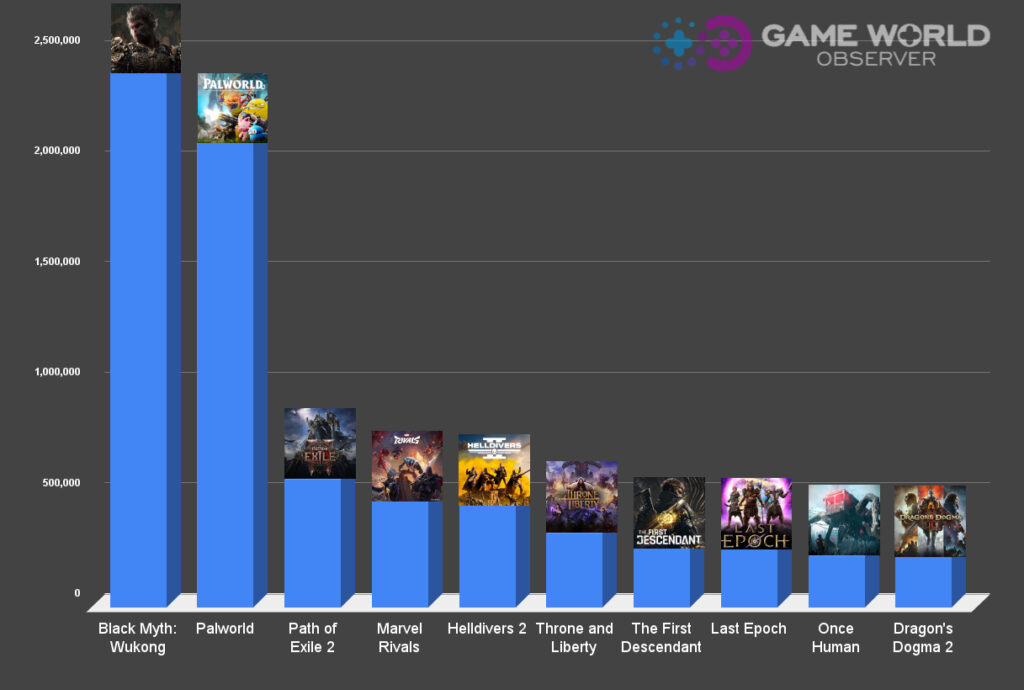

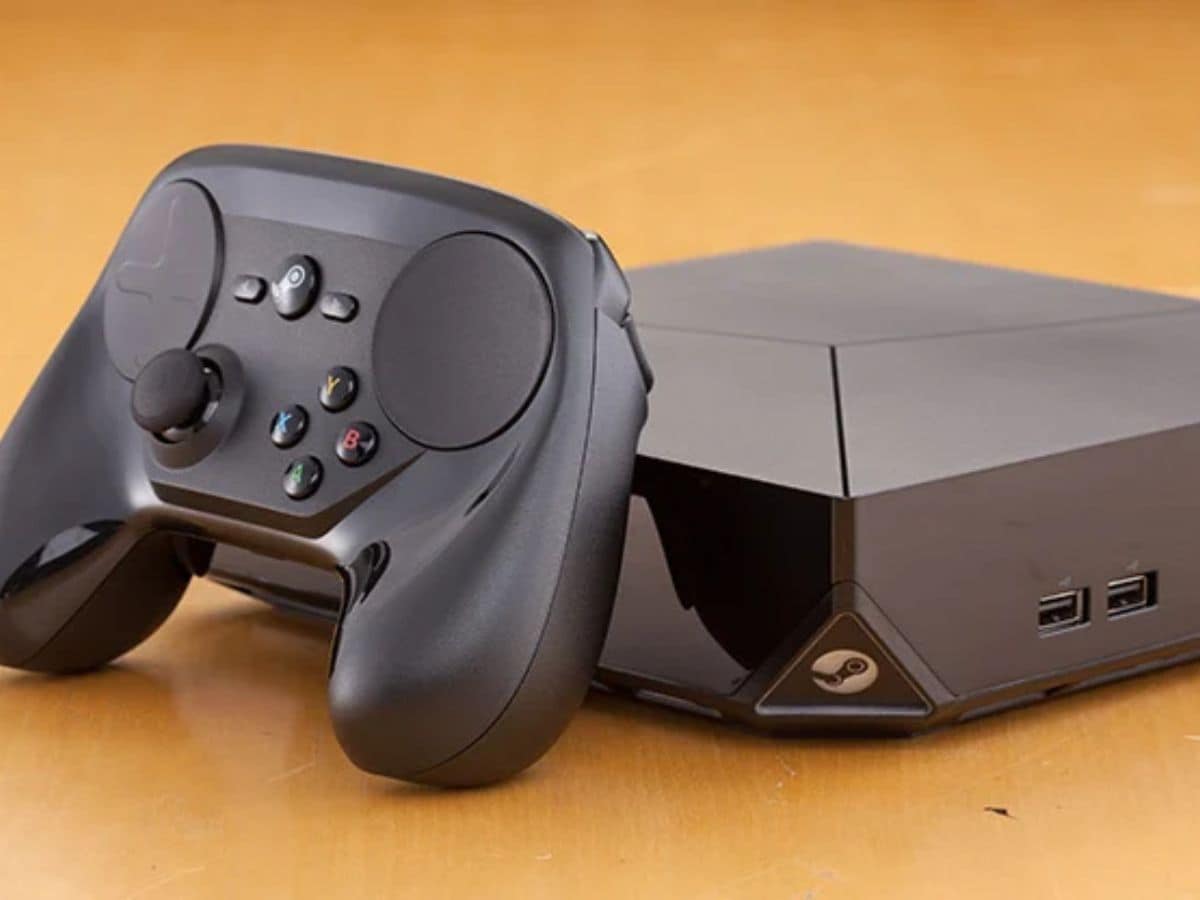
Top 10 Most Anticipated Games Of 2026 What To Watch Out For GAMES IN 2026 . PS5 Ausblick 2026 PlayStation Zeigt Fulminanten Auftakt Diese Spiele Playstation 2026 Teaser.webp. State Of Steam 2024 Almost 19k New Games 24 Titles With 100k CCU Steam Most Played Games 2024 1024x690 . Valve Steam Machine PC Console Hybrid Launches Early 2026 Why It Could Valve Steam Machine 2026 Official Product Photo 1024x512 . Valve Announces Steam Machine Console With 4K Gaming SteamOS And High Untitled 35

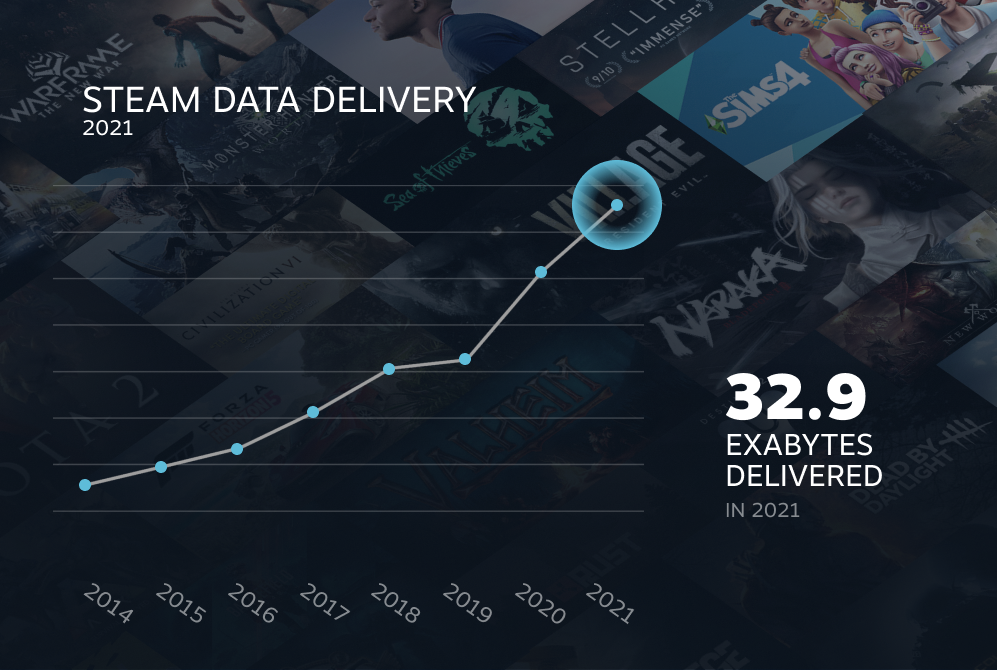



Pragmata Coming To PS5 2026 New Gameplay Revealed PlayStation Blog Scaled . Steam Had 69 Million Daily Users In 2021 PC Gamer 1024 80 . Steam Machine Guide 2026 Specs Performance 287 Steam Machine Guide Specs Performance . Fortnite Statistics 2025 Revenue Player Fortnite All Time Player Count . Splendor Statistics 2026 Icon Era Statistics Splendor Statistics 2026